Before You Acquire Everything: On-Scene Device Triage with Preview Mode
Ask any examiner what actually slows a case down and you'll rarely hear "the analysis." You'll hear about the queue. Devices pile up on a cart, each one waiting its turn for a full logical acquisition, and a meaningful share of them turn out to hold nothing relevant at all. The cost isn't just storage or lab hours — it's the hours an investigator spends waiting at a scene for a progress bar to finish before anyone can decide what happens next.
Preview Mode in ADF PRO is built for that specific gap: the window between "we have the device in hand" and "we know whether this device matters."
What it actually does
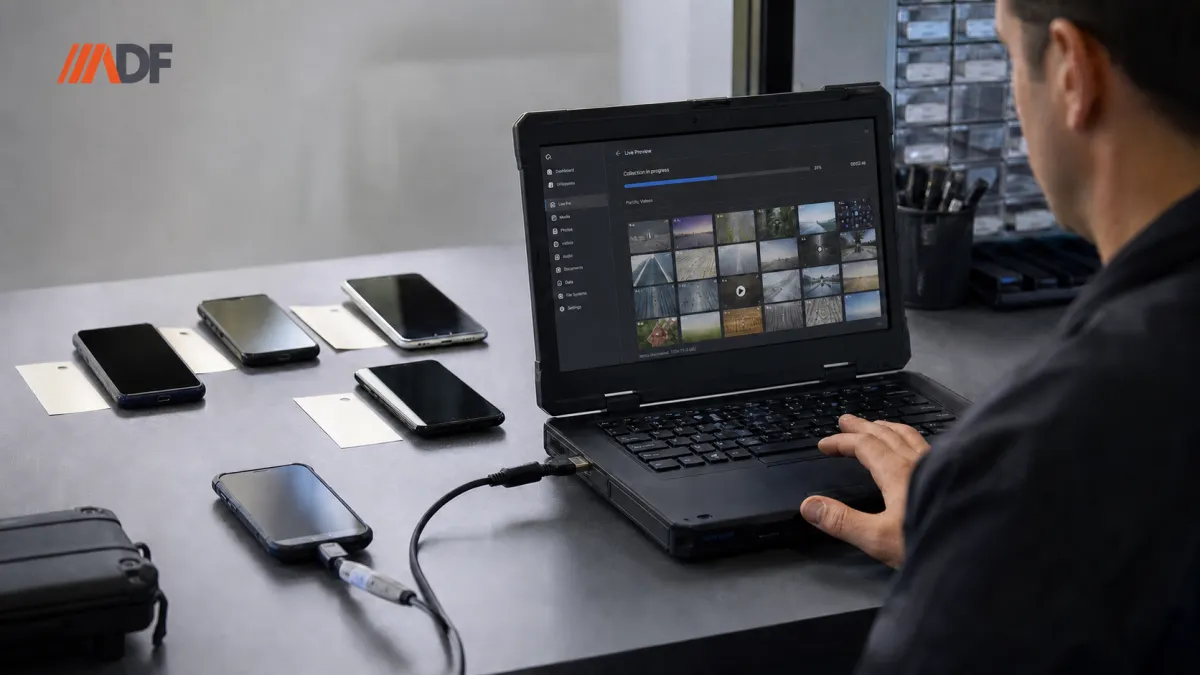
Rather than pulling a complete logical image and then opening it for review, Preview Mode establishes a live connection to the phone and streams data into the viewer while collection is still running. Files, properties, and metadata become visible as they arrive, so review starts within seconds instead of after the acquisition completes.
Two things are worth stressing here, because they're the questions that usually come up first in a room full of examiners.
The first is that this isn't a shortcut around sound methodology. Preview uses standard collection protocols and methodology designed to maintain data integrity, authenticity, and reliability. What is collected during a preview session can be preserved for continued analysis and reporting.
The second is that nothing gets thrown away when you stop early. If you find what you need three minutes in and end the session, everything already collected is written out and available for analysis and reporting. Stopping the preview isn't abandoning it.
The practical effect is that manual thumb-scrolling through a suspect's gallery — slow, inconsistent, and hard to document — stops being the default way anyone triages a phone on scene.
One iOS setting to change before you connect
This is a common cause of failed or unstable sessions, and it is a quick fix.
By default, iOS will try to transcode multimedia files on their way off the device. That conversion step can stall transfers outright, and in some cases it destabilizes the connection between the phone and the workstation badly enough that the session drops.
On the device, go to Settings → Apps → Photos, find the Transfer to Mac or PC section, and switch it from Automatic to Keep Originals. Files then move in their native format, the conversion step never runs, and the connection holds.
If you're building a field checklist for your team, put this on it. It's the difference between a clean preview and twenty minutes of troubleshooting in a driveway.
Starting a session
The setup is short:
1. Go to Investigate Device → Preview.
2. Click Add Phone. If the device doesn't show up right away, the connection wizard will walk through the handshake steps.
3. Choose a destination folder for the collected data and give the session a unique Preview Name. If your agency requires documentation captured at collection time, the Forms button in the right-hand toolbar handles that.
4. Confirm you have valid licensing in place — a computer license, an ADF Authentication Key, or a licensed Collection Key — then click PROCEED.
Naming conventions are worth agreeing on in advance as a team. Preview sessions accumulate quickly during a multi-device seizure, and "Preview 1" through "Preview 9" helps nobody at report-writing time.
Working inside the live viewer
After a brief caching pause, the viewer opens and you can move between Pictures, Videos, and Files immediately. The collection continues underneath you.
The part that changes how you work is the prioritization. The viewer tracks what you're looking at and reorders the collection queue to match. Switch from images to video and the system pushes video to the front of the line rather than making you wait out the rest of the photo library. In effect, where you point your attention is where bandwidth goes — which is exactly backwards from how a linear acquisition behaves, and much better suited to answering a question quickly.
That makes the on-scene workflow genuinely interactive. You're not waiting for a job to finish so you can start looking; you're looking, and the tool is keeping up.
Drawing the line between preview and full acquisition
Preview isn't a replacement for a full logical acquisition. It's the step that tells you whether one is warranted.
Preview fits when you need an answer in minutes, when you're verifying whether specific material is present before making a decision on scene, or when you're sorting a pile of seized devices into "examine" and "release."
Move to a full logical acquisition when the investigation requires a comprehensive dataset, deeper parsing of third-party application data, complete profile analysis, or a level of completeness that may be necessary for later examination and presentation.
The two aren't in competition. Preview is a filter that keeps the expensive process pointed at the devices that deserve it.
Where it fits in a triage-first workflow
For teams moving toward a triage-first posture, the value shows up in aggregate more than in any single case. Every device correctly ruled out on scene is a device that never enters the lab queue, never consumes storage, and never displaces a case that actually needs attention. Agencies working through significant backlogs tend to find that the bottleneck was never examiner skill — it was that everything got treated as equally likely to matter.
Preview Mode is one way to stop doing that. Make the decision on scene, with evidence in front of you, and let the full examination follow the devices that earned it.
---
ADF PRO’s Preview Mode is covered during ADF Solutions’ weekly digital forensic triage training sessions. This article was adapted from original ADF Solutions training content and is republished with permission. Learn more about Preview Mode and register for an upcoming training session at adfsolutions.com.